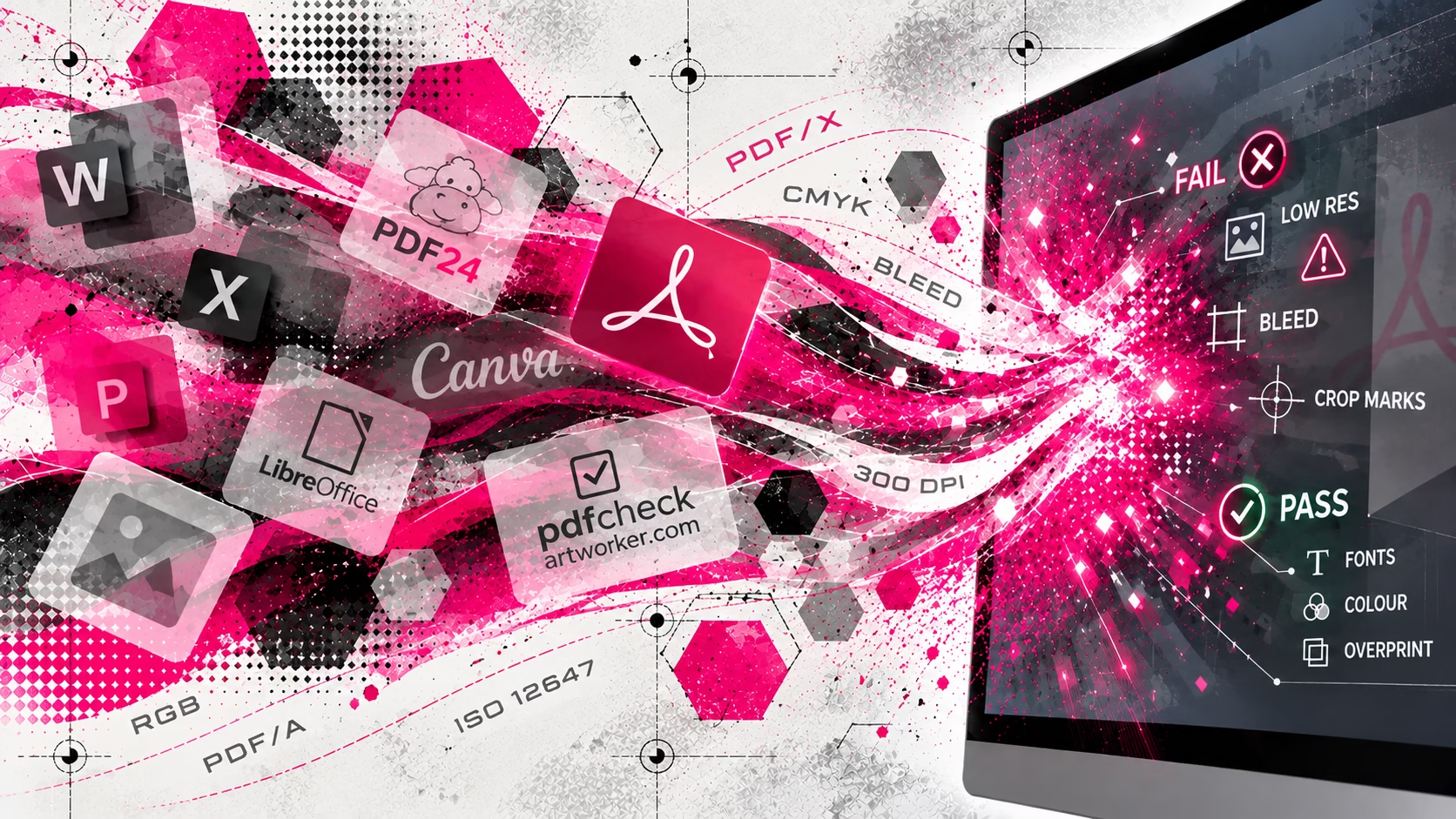
Free PDF writers
Where to create print-ready PDFs: The best free and paid tools
Need to create a PDF without paying for software? There are several excellent free PDF writers available for Windows, Mac and online use. Some create PDFs from almost any application, while others let you edit existing PDFs, convert files or manage documents directly in your web browser.
The difficulty is knowing which tools are genuinely free, which are worth downloading and which are best suited to your particular needs. At PrePress, we have selected a small number of useful options rather than listing every PDF application available. Our recommendations cover everyday PDF creation, editing, conversion and document management, with options for both beginners and more experienced users.
Our recommendation for Free PDF writers
Apple Mac: PDFgear. Offers free PDF editing, conversion, page management and OCR for Mac. Its publisher advertises these features without a subscription.
Windows users: PDF24 Creator. It combines PDF creation with a comprehensive collection of document-management tools, works offline and is free for both personal and commercial use.
Free PDF writers and creators
A PDF writer is software that creates a PDF from another document or application. Some programs export PDFs directly, while others install a virtual PDF printer that lets you create a PDF from almost any application with a Print command.
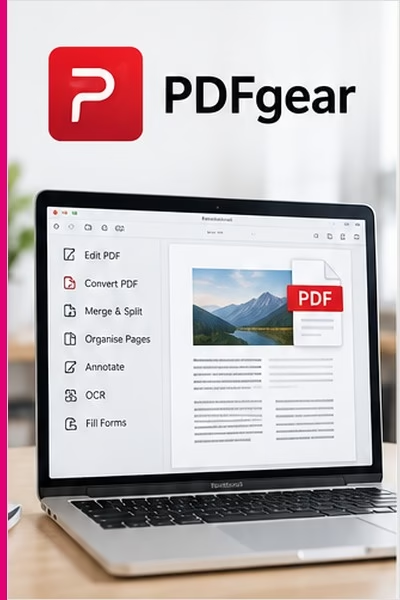
PDFgear – best free PDF editor
Best for: Users who want to edit existing PDFs as well as create and convert documents.
PDFgear is a PDF application available for Windows, macOS and mobile devices. Its publisher advertises its PDF editing software as free, offering a range of functions that are often associated with paid PDF applications.
Depending on the platform and feature, you can edit PDF text and images, convert documents, reorganise pages, add annotations, fill in forms and work with scanned documents using text recognition.
Key features
- Edit text and images in existing PDFs.
- Convert PDFs to other document formats.
- Merge, split and organise pages.
- Annotate documents and complete forms.
- Use OCR to extract text from supported scanned documents.
Why we recommend it: PDFgear is particularly interesting for people who need more than a basic PDF writer. It provides a broader editing toolkit and supports several major platforms.
Limitations: PDF editing can be more complicated than it appears. Complex layouts, fonts and formatting may not always be preserved perfectly when editing an existing PDF. Always check the final document.
Verdict: Our choice to consider first if editing PDFs is your main priority.
[Website: https://www.pdfgear.com/]
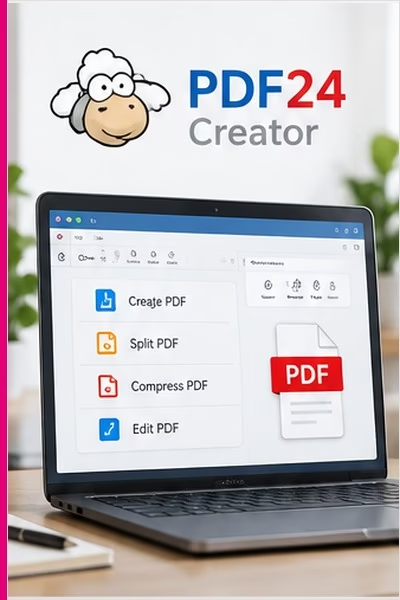
PDF24 Creator – best free PDF utility for Windows
Best for: Creating, converting, merging, splitting and managing PDFs without paying for software.
PDF24 Creator is a free Windows application that combines a PDF writer, reader and collection of PDF management tools. Once installed, it can work offline, keeping files on your computer rather than uploading them to an online service. Its virtual PDF printer allows you to create a PDF from many applications, while its other tools let you combine documents, rearrange pages, compress files and convert between formats.
Key features
- Create PDFs from printable documents.
- Merge, split, rotate and rearrange PDF pages.
- Convert documents and images to PDF.
- Compress PDFs and adjust certain output settings.
- Read PDFs using the integrated reader.
- Work offline, with files remaining on your computer.
Limitations: PDF24 Creator is designed for Windows, not macOS. Although it offers a wide range of PDF settings, it is not a substitute for a dedicated professional prepress inspection workflow.
Our verdict: Our leading free recommendation for Windows users who want an all-round PDF creation and management tool.
[Website: https://tools.pdf24.org/en/creator]
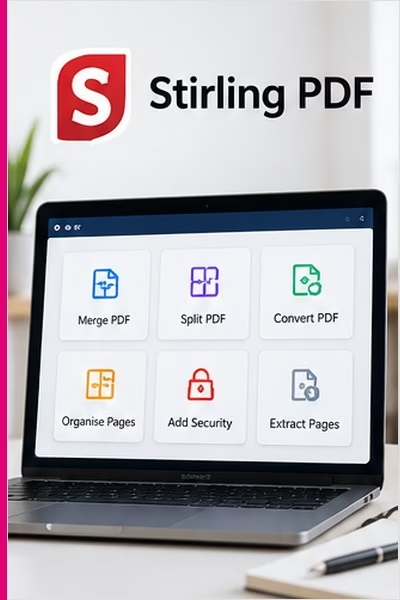
Stirling PDF — best free open-source PDF toolkit
Best for: Users who want a broad collection of PDF tools and prefer working with files locally.
Stirling PDF is an open-source PDF application with a desktop version for Windows, Mac and Linux. Its tools cover tasks such as organising documents, splitting and merging files, converting content, adding security features and extracting information.
The desktop application is available free for individual users. Stirling PDF also has hosted and self-managed options, so check the specific offering before choosing how to use it.
Key features
- Merge and split PDFs.
- Rearrange, rotate and manage pages.
- Carry out a range of document conversions.
- Apply selected security and document-processing operations.
- Use the desktop application on Windows, Mac or Linux.
Why we recommend it: Stirling PDF offers a substantial toolkit for people who want more control over PDF processing without committing to a commercial subscription.
Limitations: Its many tools and settings may be more than a casual user needs. Some advanced services and deployment options differ from the free desktop application.
Verdict: A strong alternative for users who want a versatile, open-source PDF toolkit.
[Website: https://www.stirling.com/download]
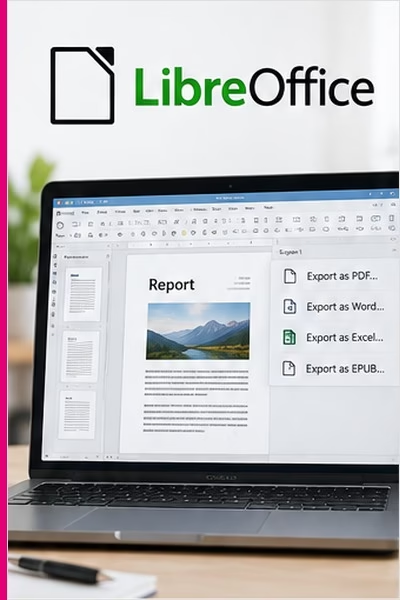
LibreOffice – best for creating PDFs from documents
Best for: Letters, reports, spreadsheets, presentations and office documents.
LibreOffice is a free office suite containing Writer, Calc and Impress. Each application can export documents directly to PDF.
For example, you can write a report in Writer, create a spreadsheet in Calc or prepare a presentation in Impress, then export the finished document without installing a separate PDF writer.
Key features
- Free and open-source.
- Available for Windows, macOS and Linux.
- Direct PDF export.
- Suitable for text-heavy documents, reports and presentations.
Why we recommend it: If your main purpose is to turn ordinary office documents into PDFs, LibreOffice provides a complete free solution.
Limitations: It is not a dedicated PDF editor or specialist prepress application. Its normal PDF export should not be confused with a comprehensive check that an existing file is suitable for commercial printing.
Verdict: An excellent free choice for anyone who needs to create PDFs from office documents.
[Website: https://www.libreoffice.org/]
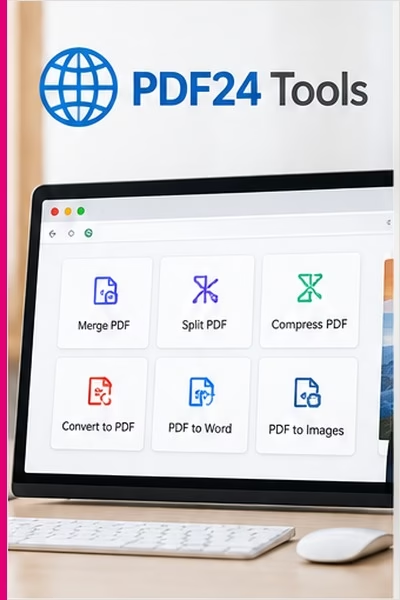
PDF24 online tools – best for quick PDF tasks in a browser
Best for: People who want to create, convert, compress, combine or rearrange PDFs without installing software.
PDF24 also provides an extensive collection of free online PDF tools. These can be accessed through a web browser, making them convenient for occasional tasks on different computers.
Available functions include converting documents and images, merging files, splitting PDFs, compressing documents, rotating pages and organising existing files.
Key features
- Use a large selection of PDF utilities online.
- Convert between supported document formats.
- Merge, split and compress PDFs.
- Organise and modify document pages.
- No desktop installation is required for the online tools.
Why we recommend it: The breadth of tools makes PDF24 useful even if you do not want to install PDF24 Creator.
Limitations: Online processing requires you to consider where your files are being handled. Avoid uploading confidential customer documents or commercially sensitive artwork unless the service’s privacy and data-handling arrangements are appropriate for your needs.
Verdict: Our preferred starting point for straightforward PDF jobs that need to be completed online.
[Website: https://tools.pdf24.org/en/all-tools]
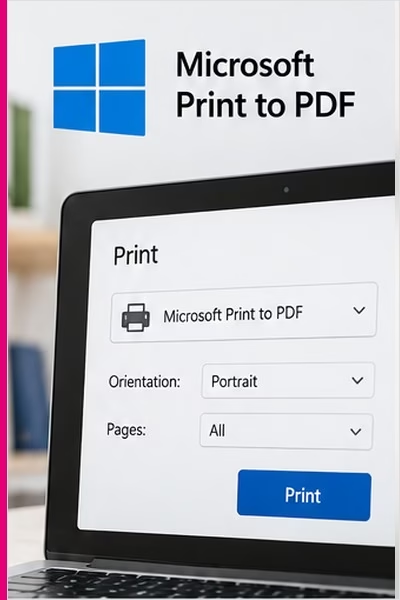
Microsoft Print to PDF – best built-in Windows PDF writer
Best for: Windows users who want to create a PDF without downloading additional software.
Windows includes a virtual PDF printer called Microsoft Print to PDF. If an application supports printing, you can usually select this option from its Print dialogue and save the output as a PDF.
This is one of the simplest ways to create a PDF from an existing document.
How to use it
- Open the document in the application you normally use.
- Select File > Print.
- Choose Microsoft Print to PDF as the printer.
- Select Print and save the resulting PDF.
Why we recommend it: It is built into Windows, so there is no need to purchase or install a separate PDF writer.
Limitations: It is a basic creation method rather than a full PDF management application. It does not replace the specialist editing and inspection facilities available in more comprehensive tools.
Verdict: Ideal for occasional PDF creation when you do not need additional features.
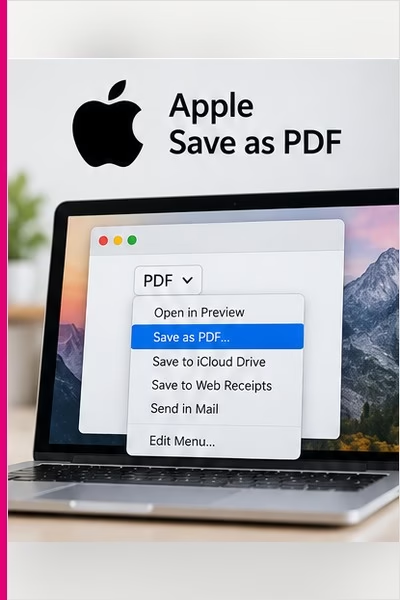
Apple Save as PDF – best built-in PDF creation option for Mac
Best for: Mac users who need a simple way to create PDFs without installing extra software.
macOS includes a PDF saving function in its Print dialogue. You can use it to save supported documents as PDFs directly from your current application.
How to use it
- Open the document you want to save.
- Select File > Print.
- Click the PDF button or open the PDF menu.
- Choose Save as PDF.
- Select a filename and save location.
Why we recommend it: It is already available on your Mac and handles many everyday PDF creation tasks without extra software.
Limitations: It is intended for straightforward PDF creation rather than complex editing or specialist prepress inspection.
Verdict: The easiest option for Mac users who simply need to save documents as PDFs.
[Website: https://support.apple.com/en-gb/guide/mac-help/mchlp1531/mac]
Which free PDF writer should you choose?
The best tool depends on what you want to accomplish.
| Your requirement | Our recommendation |
|---|---|
| General PDF creation and management on Windows | PDF24 Creator |
| Editing existing PDFs | PDFgear |
| A free, open-source PDF toolkit | Stirling PDF |
| Creating PDFs from office documents | LibreOffice |
| Quick online PDF conversions and modifications | PDF24 online tools |
| Instal free PDF software on Windows | Microsoft print to PDF |
| Instal free PDF software on Mac | Apple save as PDF |
You do not need to install all of them. Choose the option that fits your usual tasks and only add another tool when you need a feature that your current software cannot provide.
What about free PDF readers?
A PDF writer creates a PDF; a PDF reader opens one so you can view, print or annotate it. Some applications do both. Two further free options are worth knowing about:
Adobe Acrobat Reader is a widely used free application for reading, printing, commenting on and signing PDFs.
[Website: https://www.adobe.com/acrobat/pdf-reader.html]
Apple Preview is included with macOS and lets you view, print and annotate PDFs without installing another application.
[Website: https://support.apple.com/guide/preview/welcome/mac]
Neither a PDF reader nor a basic PDF writer automatically guarantees that a file is technically ready for professional printing.
Can a free PDF writer create print-ready PDFs?
Yes, free PDF writers can, provided the application and the original document support the requirements of the job. However, creating a PDF is not the same as checking it for professional printing.
A PDF intended for commercial print may need the correct page dimensions, bleed, embedded fonts, suitable image resolution and appropriate colour settings. The exact requirements depend on the printing process and the specification supplied by the printer. A document can look correct on screen and still contain problems that affect the printed result.
For that reason, we recommend creating the PDF using the appropriate application settings and checking the exported file before sending it to a printer. Where a job requires specialist checks, use suitable preflight software or ask your printer to confirm the requirements.
Our final recommendation
For most people using Windows, PDF24 Creator is the best place to start. It combines free PDF creation with a wide range of useful tools, works offline and is available for personal and commercial use.
For people who need to edit existing PDFs, PDFgear is well worth considering. Stirling PDF is another strong option for users who want an open-source toolkit, while LibreOffice is ideal for producing PDFs from office documents. Mac users can begin with the built-in Save as PDF function, and Windows users can use Microsoft Print to PDF for simple jobs.
The important thing is to choose a tool that meets your needs without paying for features you will never use. For professional printing, remember that the final PDF still needs to meet the printer’s technical requirements. At PrePress, we believe that understanding your tools is the first step towards producing reliable files. A good PDF writer makes creating a PDF straightforward; knowing how to check the finished file helps you avoid unnecessary problems later.