How to send large files for free
We explore how to send a large files using the tools you already have and other options
Have you ever tried to email a file only to receive a message saying it’s too large to send? It’s a common problem. Most email providers limit the size of attachments – for example, Gmail, Outlook, and Yahoo Mail all have a maximum attachment size of 25 MB. If you’re trying to send a high-resolution video, large presentation, or archive, you’ll need another solution.
Fortunately, there are plenty of free services that make sending large files quick and easy. We will show you here how to send large files for free.
Use your email provider’s cloud storage
Many email services automatically upload large files to cloud storage instead of attaching them directly.
Gmail + Google Drive
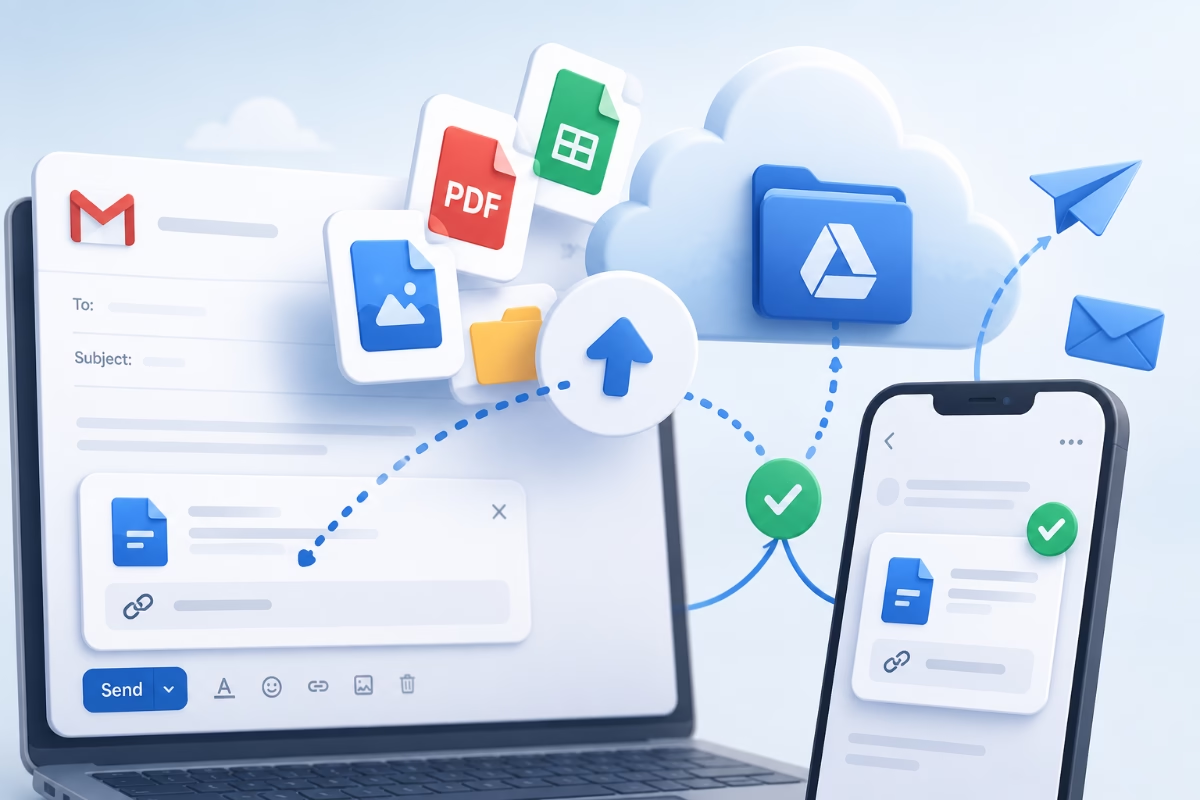
If you attach a file larger than 25 MB in Gmail, it is automatically uploaded to Google Drive. Gmail inserts a sharing link into your email instead of attaching the file.
Before sending, you can choose whether recipients can:
- View the file
- Comment on the file
- Edit the file (if appropriate)
This is one of the easiest methods if you already use a Google account.

Apple Mail
Apple Mail can send large files up to 5 GB using a built-in iCloud feature called Mail Drop. Instead of clogging up your recipient’s inbox, the file is temporarily hosted on iCloud and a secure download link is automatically inserted into your email.
- No iCloud impact: Mail Drop files do not count against your personal iCloud storage quota.
- Link expiration. The recipient has 30 days to download the file before the link expires.
- Web access: If you don’t use the native app, you can also log into iCloud.com and access Mail Drop there.
| Service | Storage | Notes |
|---|---|---|
| Google Drive | 15 GB | Easy sharing and excellent integration with Gmail. |
| Microsoft OneDrive | 5 GB | Built into Windows and Microsoft 365. |
| Dropbox | 2 GB | Simple sharing with desktop and mobile apps. |
| Box | 10 GB | Good for business and document collaboration. |
| Apple iCloud | 5 GB | Best suited for Apple users. |
Keep in mind that storage limits and maximum file sizes may change over time.
Free File Transfer Services
If you don’t want to upload files to permanent cloud storage, dedicated file transfer services are often the quickest option.
TransferNow
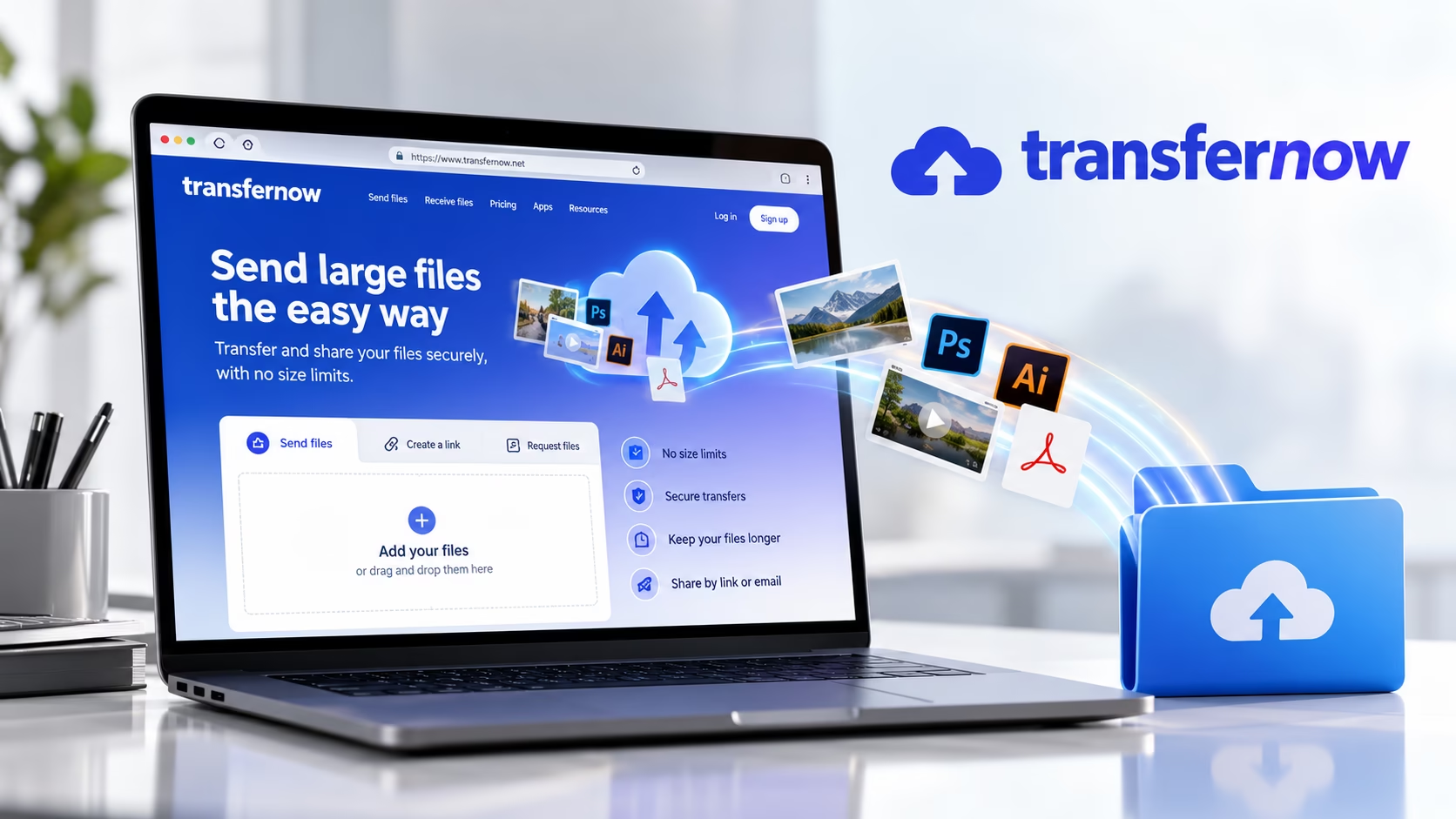
- Free transfers up to 5 GB
- No registration required
- Password protection available
- AES-256 encryption
- Download tracking
Website: https://www.transfernow.net/en
WeTransfer
One of the best-known file transfer services. Free features:
- Send files up to 3 GB
- No account required
- Download links remain available for a limited time
Website: https://wetransfer.com/
Filemail
- Send files up to 5 GB for free
- Email notifications
- Download via secure link
- Optional desktop and mobile apps
Website: https://www.filemail.com/
Send Anywhere
- Send files up to 10 GB for free
- Secure six-digit transfer key
- Share using links or email
- Apps available for Windows, macOS, Android and iPhone
Website: https://send-anywhere.com/
SendBig
- Send files up to 30 GB
- Optional password protection
- Custom expiry dates
- Download notifications & Download limits
Website: https://www.sendbig.com/

Smash
- No practical file size limit (large files may be processed more slowly on the free plan)
- Password protection
- File previews & Easy link sharing
Website: https://fromsmash.com/
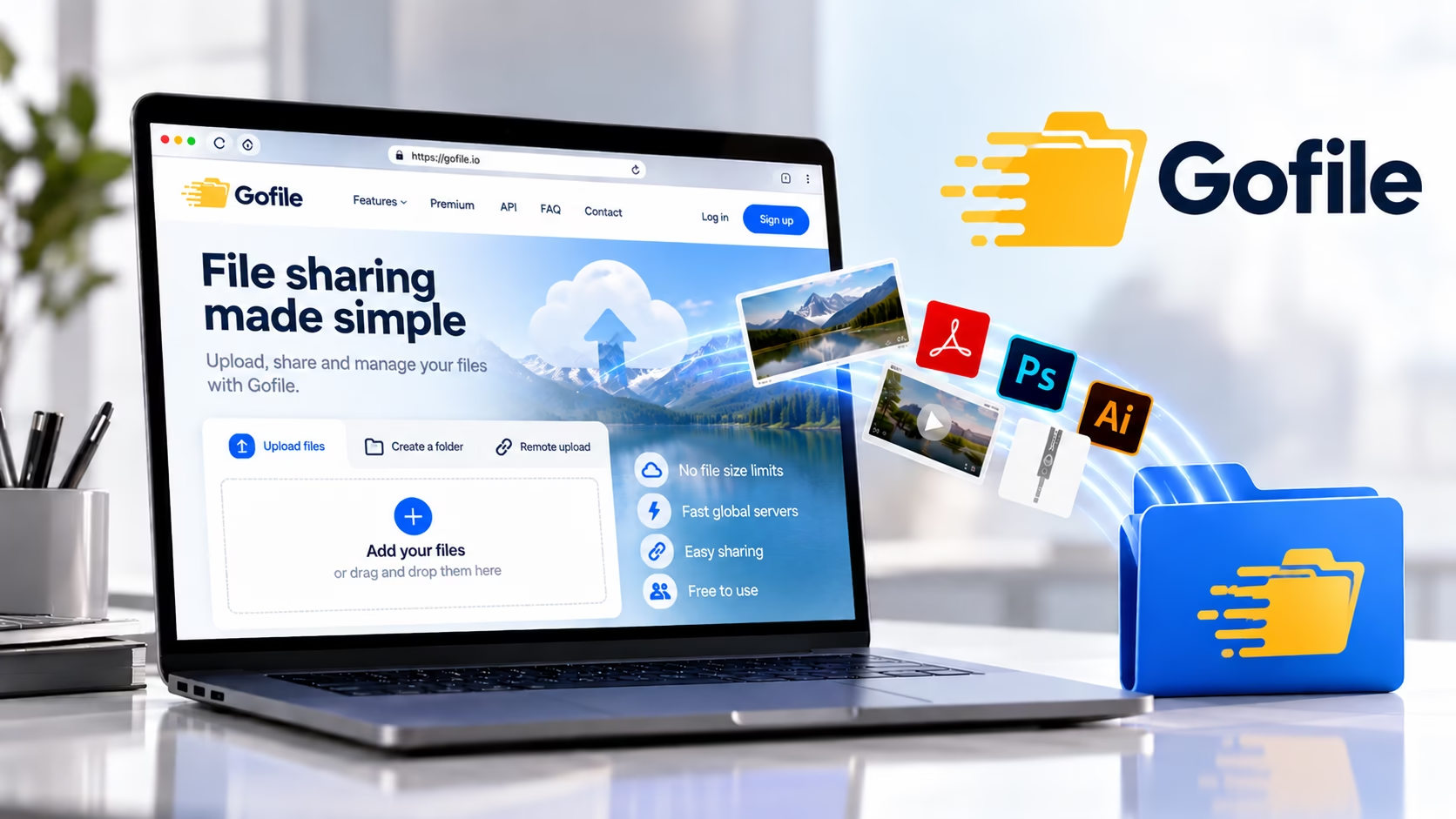
Gofile
- Supports very large uploads
- No strict upload quantity limits
- Simple sharing links
- No account required (optional accounts available)
Website: https://gofile.io/
Peer-to-Peer File Sharing
Peer-to-peer (P2P) file sharing is a method of transferring files directly between computers or devices over the internet, without storing the files on a central server. Each participant (called a “peer”) can both upload and download files, making transfers faster and more resilient than relying on a single server.
How it works
Instead of downloading a large file from one website:
- The file is split into many small pieces.
- Your computer downloads different pieces from multiple users simultaneously.
- As you receive pieces, you also begin uploading them to other users.
- Once all the pieces are received, the software reassembles the complete file.
This distributed approach makes P2P highly efficient for transferring very large files.
ToffeeShare
ToffeeShare works differently from most services. Instead of uploading your files to a server, it creates a secure peer-to-peer connection between you and the recipient. Benefits include:
- No file size limits
- Files are never stored permanently online
- Direct encrypted transfer
- Ideal for large files
The only requirement is that your browser must remain open until the transfer is complete.
Which Option Should You Choose?
Best For |
Recommended Service |
|---|---|
|
Everyday file sharing |
GoogleDrive or Apple iCloud |
|
Fast one-off transfers |
TransferNow or WeTransfer |
|
Very large files |
SendBig or Smash |
|
Maximum privacy |
ToffeeShare |
|
Sharing between devices |
Send Anywhere |
|
Business collaboration |
Box |
Email attachments are convenient, but they’re not designed for large files. Whether you’re sending videos, photos, backups or project files, cloud storage and dedicated transfer services offer faster, safer and more reliable alternatives.
Before using any service, it’s worth checking its current free limits and retention period, as these can change over time.
Explore the world of PrePress