Print Resolution Explained: DPI, PPI and LPI
Print resolution determines how much detail can be reproduced in a finished image. Getting it wrong can result in soft, blurred or pixelated images, even when the original artwork looks sharp on screen.
Understanding the difference between DPI, PPI and LPI is essential when preparing artwork for professional printing. Although often confused, each measures a different part of the printing process.
Understanding print resolution
DPI – Dots Per Inch
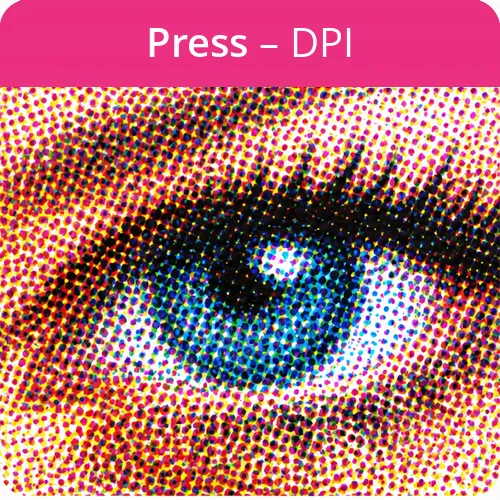
DPI measures the number of individual ink or toner dots a printer can place within one inch. It describes the output resolution of the printing device, rather than the resolution of the original digital image.
A higher DPI generally allows a printer to reproduce finer details and smoother tonal transitions. However, printer DPI and image PPI are not directly interchangeable. A printing device uses multiple tiny dots to reproduce the colours and tones within an individual image pixel.
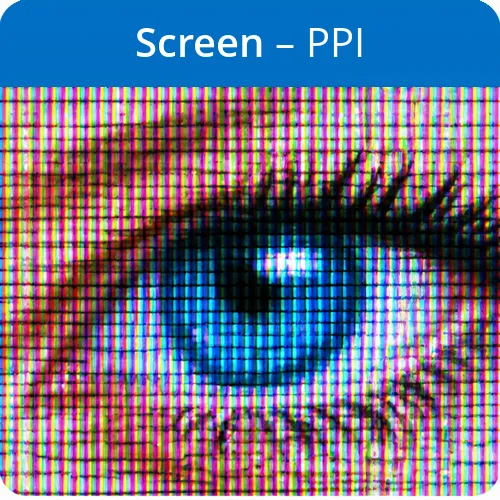
PPI – Pixels Per Inch
PPI measures the pixel density of a digital image. It describes how many pixels are contained within each inch when an image is reproduced at a particular physical size.
For example, a photograph prepared at 300ppi contains 300 pixels for every inch of its intended printed size.
The important distinction is that PPI depends on both the pixel dimensions of an image and the physical size at which it is printed. Enlarge an image without adding genuine pixel information and its effective PPI will decrease.
In the printing industry, designers and printers often refer to a 300ppi image as a 300dpi image. Although this terminology is widely understood, PPI is the technically correct measurement for digital images.
LPI – Lines Per Inch
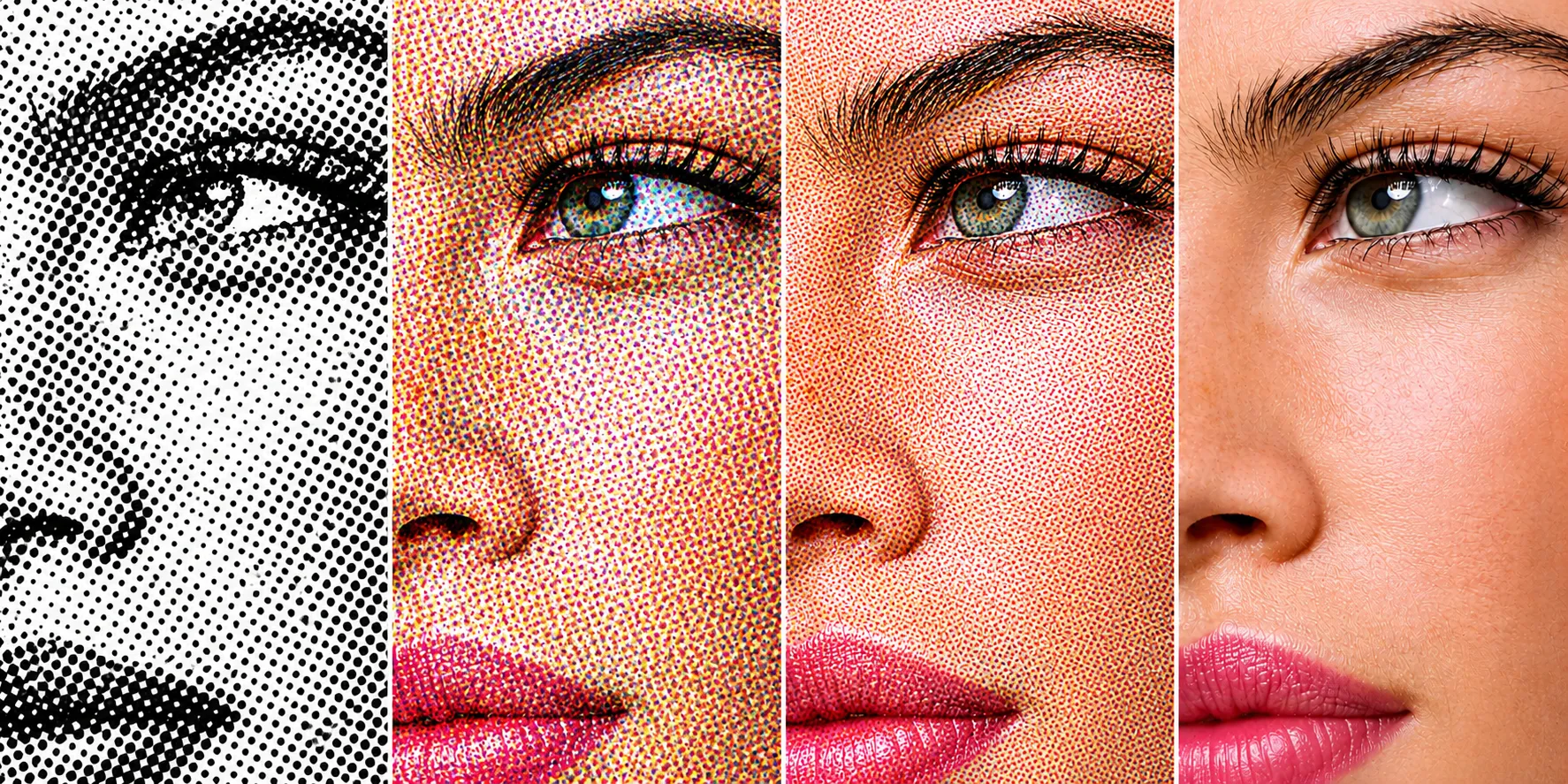
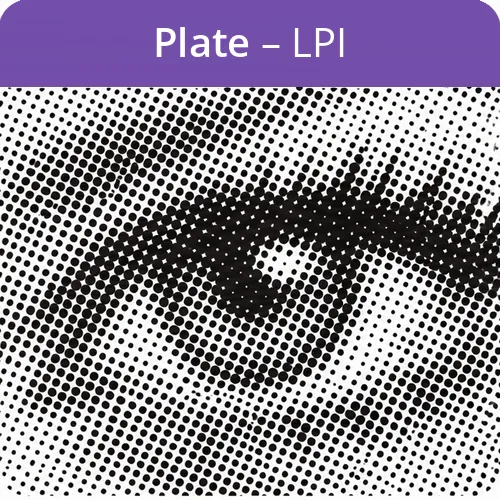
LPI measures the screen ruling used in conventional halftone printing. It describes the number of rows of halftone cells within one inch.
During conventional offset printing, photographs are converted into halftone dots of varying sizes to reproduce continuous tones. A finer screen uses more closely spaced halftone cells, allowing greater detail to be reproduced. Typical screen rulings vary according to the printing process, paper and quality requirements.
For example, newspapers generally use coarser screens, whereas high-quality magazines and brochures can use much finer screen rulings. In the printing industry, designers and printers often refer to a 300ppi image as a 300dpi image. Although this terminology is widely understood, PPI is the technically correct measurement for digital images.
Is 300ppi enough for professional printing?
For most commercial printing, 300ppi remains a perfectly acceptable standard.
It is widely used for brochures, leaflets, business cards and magazines. However, 300ppi is not necessarily the optimum resolution for every printing application. When printing high-quality magazines, premium brochures and photographic work, a higher image resolution can provide additional detail, particularly when used with a finer halftone screen.
A useful starting point for print resolution is to prepare raster images at approximately 1.5 to 2 times the intended LPI screen ruling. Using twice the LPI is a common target for high-quality conventional halftone printing.
| Halftone screen (LPI) | Image resolution (PPI). |
|---|---|
| 90LPI | 135–180PPI |
| 150LPI | 225–300PPI |
| 175LPI | 265–350PPI |
| 200LPI | 300–400PPI |
These are working guidelines for print resolution rather than absolute rules. The image content, printing equipment, paper and screening technology all influence the final result.
For particularly demanding work, preparing images at 400ppi rather than 300ppi can preserve additional image information for finer printing. The improvement will not always be obvious, but comparing two prints side by side can reveal differences in fine detail.
Why your PDF export settings matter
One of the most easily overlooked problems occurs when exporting finished artwork to PDF. You might carefully prepare photographs at 400ppi, place them into InDesign and create perfectly constructed artwork, only to lose that additional resolution during PDF export.
Many PDF presets include image downsampling and compression settings designed to reduce file sizes. Depending on the preset, images can be reduced to 300ppi or lower, effectively undoing the higher-resolution preparation. There are two separate considerations:
1. Image downsampling
Check the compression settings when exporting your PDF. Make sure the colour and greyscale images are not being automatically reduced below the resolution required for your job.
2. Image compression
JPEG compression is lossy, meaning some image information is discarded to reduce file size. ZIP compression is lossless and retains the original image data.
The correct settings depend on the printer’s workflow and the type of work being produced. For specialist or high-quality printing, ask your printer for its recommended PDF export settings or Adobe PDF joboptions file. You should also use the correct PDF output intent and ICC colour profile supplied or recommended by your printer. Do not simply create an arbitrary output intent, as it needs to describe the intended printing condition.
Image resolution at the correct size
The resolution of an image should always be considered at its final placed size, not simply the number displayed in Photoshop. For example, a photograph measuring 3,000 pixels wide will produce:
- 300ppi when printed at 254mm wide
- 200ppi when printed at 305mm wide
- 150ppi when printed at 508mm wide
Enlarging an image reduces its effective PPI, whereas reducing its physical size increases it. For this reason, it is important to check the effective resolution of placed images in your design application before producing the final PDF.
Where images are used across multiple publications and sizes, maintaining a high-quality original master file is a sensible approach. This allows different versions to be produced without repeatedly altering the original image. At PrePress we do not have multiple versions on ly master.the output is controlled at the PDF stage.
Recommended image resolutions for print
The following are practical starting points for preparing photographic images for conventional print production.
| Application | LPI | Recommended Image Resolution |
|---|---|---|
| High Street printing | 150LPI | 300PPI |
| Magazine and high-end printing | 200LPI | 400PPI |
| Specialist high resolution Printing | 400-600PPI | |
| Web and digital display | 72LPI | Determind by pixel dimensions |
These figures assume that images are prepared at their final reproduction size. Your printer should always confirm its requirements, particularly for specialist printing processes.
What about stochastic printing?
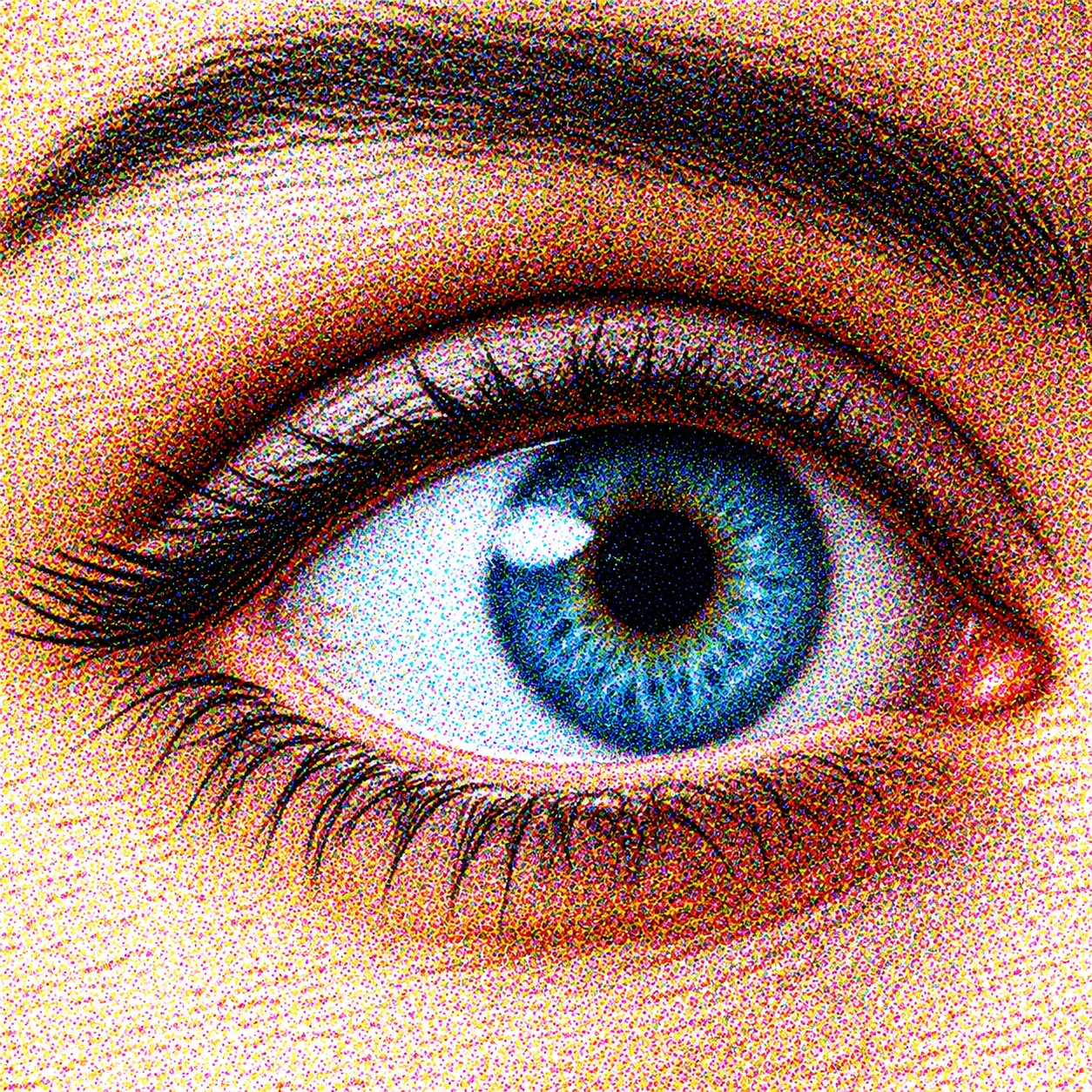
Stochastic printing, also known as Frequency Modulated (FM) screening, works differently from conventional halftone printing. Rather than arranging dots in a regular grid and varying their size, stochastic screening uses much smaller dots of a more consistent size, with their spacing varied to reproduce different tones.
This eliminates the traditional screen angles and can reduce the risk of moiré patterns. It can also produce exceptionally smooth photographic reproduction. Because stochastic screening does not use a conventional LPI screen ruling, the standard LPI × 2 calculation does not apply.
Image resolution requirements depend on the particular screening system and printing equipment. Some specialist workflows may specify 600ppi or higher, but this should never be assumed without consulting the printer.
Monitor resolution and web images
A common misconception is that all computer monitors display images at 72ppi and that web images therefore need to be prepared at 72ppi. Neither is a reliable rule for modern digital displays.
Monitor pixel density is measured in PPI, but it depends on the screen’s physical dimensions and its actual pixel resolution. For example, a 4K monitor typically has a resolution of 3840 × 2160 pixels, giving it approximately 8.3 million pixels. Its actual PPI depends on the physical size of the display.
For websites, the pixel dimensions of an image are what matter most. Changing an image’s resolution metadata from 72ppi to 300ppi does not automatically make it sharper on screen.
What about vector artwork?
Vector graphics are resolution-independent. Unlike photographs and other bitmap images, they are constructed using mathematical paths rather than a fixed grid of pixels. This means that vector logos, illustrations and typography can be enlarged or reduced without losing their sharpness. However, any photographs or bitmap images placed within a vector document still have their own effective image resolution requirements.
Our recommendation
For most conventional commercial offset printing, 300ppi is perfectly adequate and will produce excellent results. However, for premium brochures, high-end magazines, photographic work and clients who demand the very best reproduction quality, we recommend considering 350ppi or 400ppi where the printing process justifies it.
There is little advantage in increasing every image to 400ppi simply for the sake of it. Equally, there is little reason to throw away useful image information unnecessarily during artwork preparation or PDF export.
Our approach is to retain as much original image information as practical and prepare files at the resolution appropriate to the printing process. You can always reduce image resolution when required, but once original pixel information has been discarded, it cannot be recovered simply by increasing the PPI figure.
At PrePress, we believe that understanding print resolution as part of the printing process is just as important as producing the artwork. Getting the resolution right is part of getting the finished result right.
Explore the world of PrePress