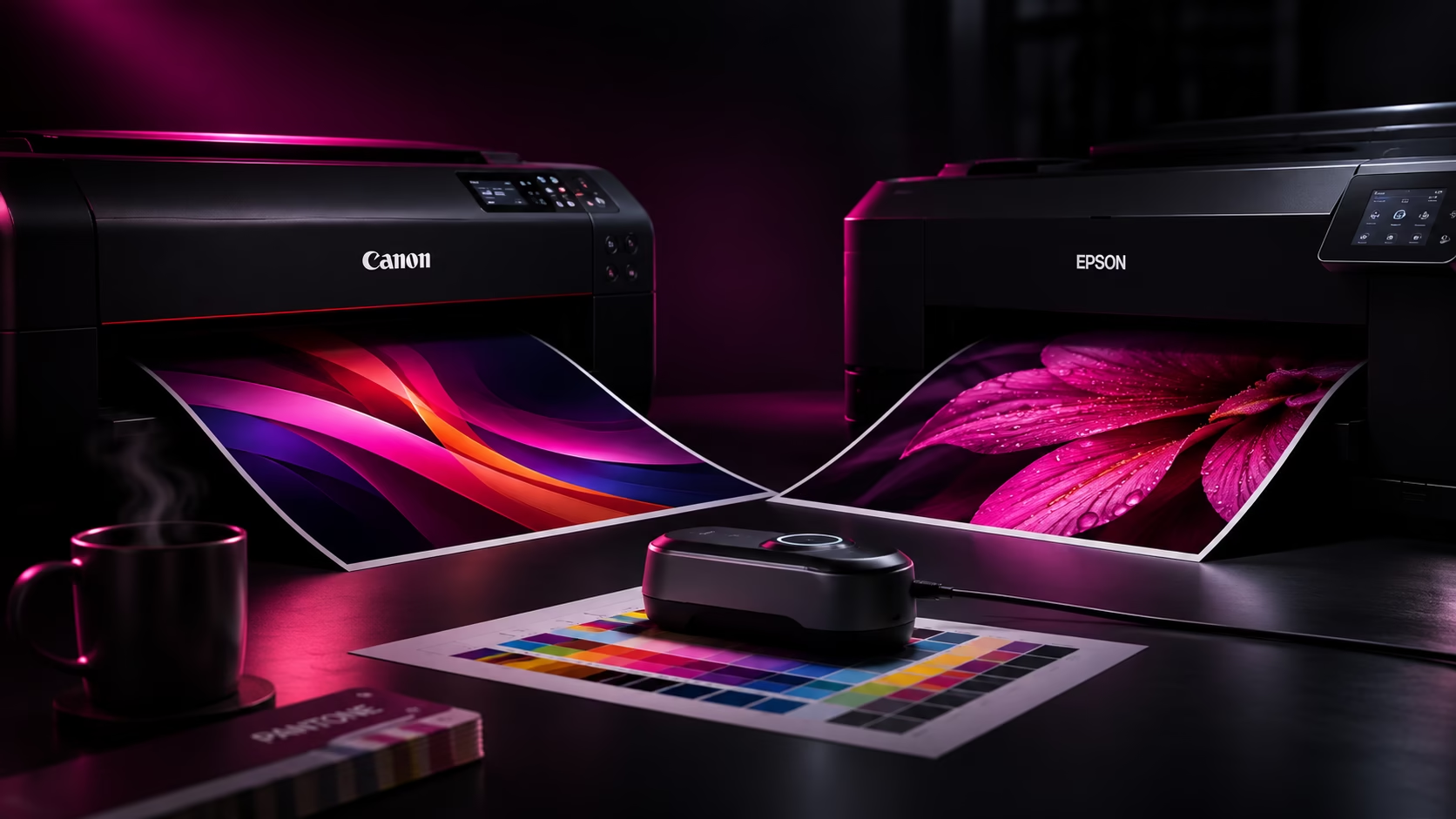
The best desktop printers for graphic designers and artists
For graphic designers and artists, choosing the right desktop printer is about more than resolution or print speed. Accurate colour reproduction, reliable ink technology, suitable media handling and consistent output all play an important part in producing prints that faithfully represent the original artwork.
For self-employed designers and artists, an A2 printer can be a valuable investment. It gives you the freedom to produce exhibition prints, portfolio pieces, proofs and finished artwork in-house, without relying on an external print service for every job.
But which printer should you buy? To find the best desktop printers for graphic designers, artists and photographers we have looked at the leading options, considering print quality, ink systems, media handling, running costs and the practical needs of a small creative business.
Why are Canon and Epson the leading choices for professional A2 photo printing?
When researching professional A2 photographic printers, two manufacturers consistently stand out: Canon and Epson. This isn’t simply a matter of brand popularity. Both have developed dedicated photographic printer ranges with sophisticated multi-ink systems, pigment-based inks, advanced colour reproduction and support for specialist photographic and fine art papers. Other manufacturers, including HP, Brother and Mutoh, also produce professional printing equipment. However, their products tend to target different markets.
HP
has an established professional photographic printing range through its DesignJet Z-series. These machines offer excellent colour reproduction and are designed for larger-format production, typically starting at 24 inches (A1) and extending considerably further. They are not direct desktop A2 alternatives.
Mutoh
concentrates more heavily on wide-format graphics, signage and specialist production applications, including UV, textile and eco-solvent printing.
Brother
offers a range of inkjet and professional business printers, including A3 models, but does not currently offer a directly comparable 17-inch A2 professional photographic printer.
There are also larger professional models within the Canon and Epson ranges. For example, the Epson SureColor SC-P5300 is another 17-inch A2 photographic printer, designed with higher-volume production, larger ink cartridges and more flexible media handling in mind.
For photographers, graphic designers and artists looking for a dedicated desktop printer capable of producing professional A2 photographic output, Canon and Epson therefore remain the two principal manufacturers to consider. The comparison in this guide concentrates on machines suited to this particular requirement, rather than attempting to compare equipment designed for entirely different production environments.
Further reading and references
- Digital Camera World – Best photo printers – Independent photographic printer reviews and comparisons.
- Design Supply – A2 and large-format printers – UK supplier covering Canon, Epson, HP and Mutoh equipment across different print formats.
- Epson – SureColor SC-P5300 – Manufacturer specifications for Epson’s professional 17-inch A2 production printer.
Our recommended printers at a glance
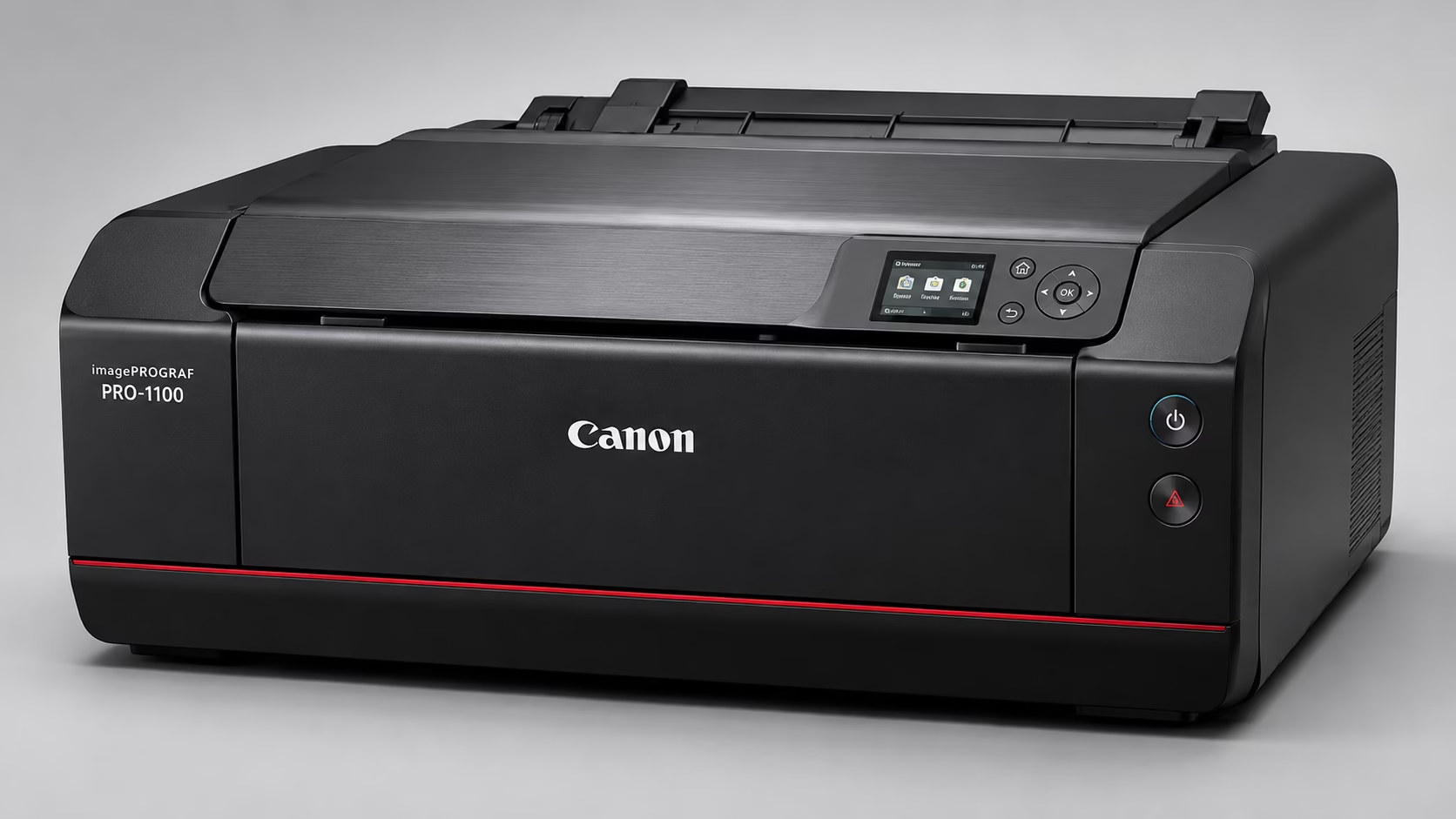
Canon imagePROGRAF PRO-1100
Best overall A2 printer
Approx. £1,099.99
A professional 12-ink A2 printer using 11 LUCIA PRO II pigment inks and a Chroma Optimizer. A strong all-round choice for photographers, designers and artists who want detailed, consistent prints and a wide range of media options.
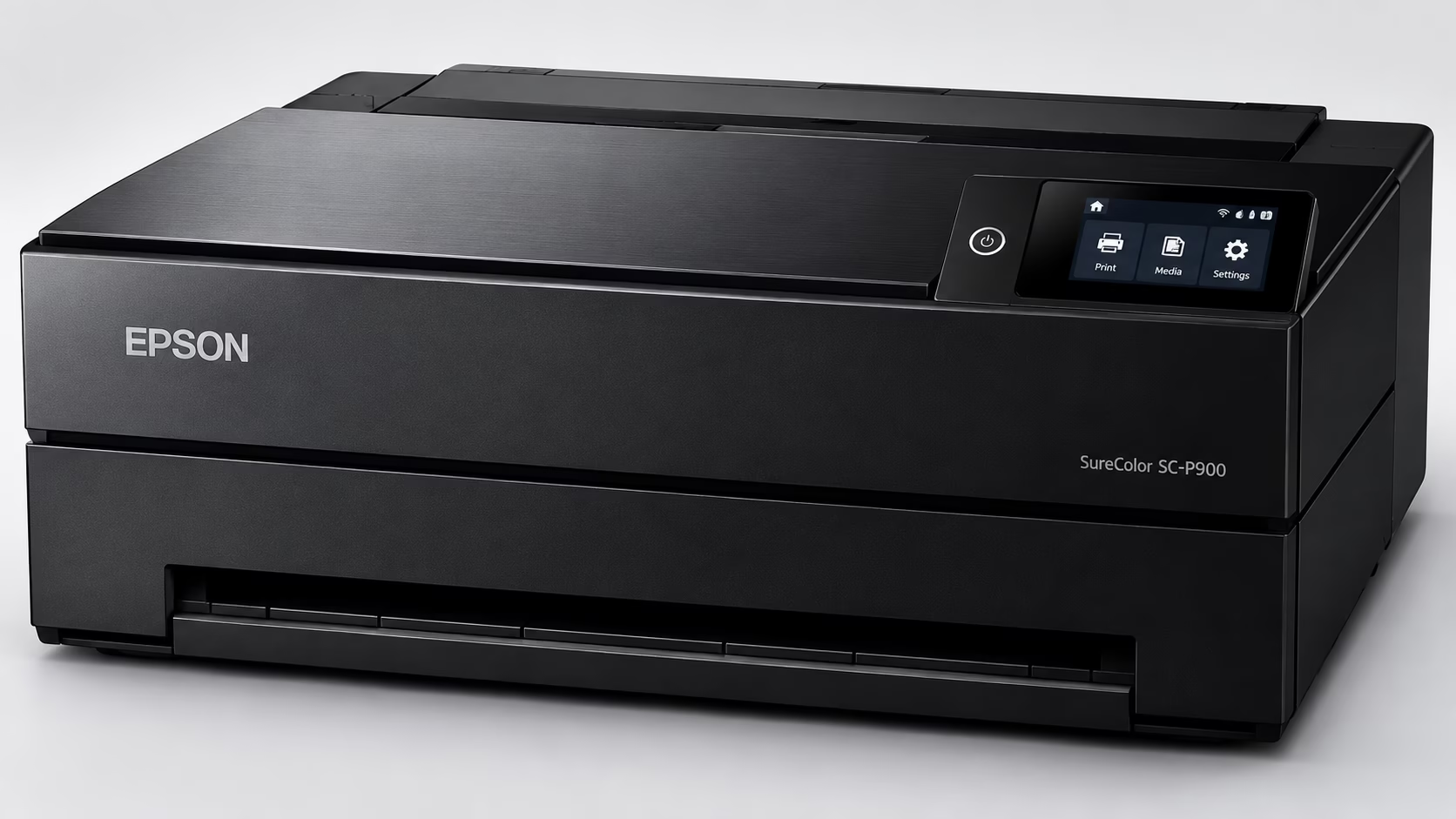
Epson SureColor SC-P900
Best for fine-art printing
Approx. £1,140.30
A professional 10-colour pigment printer with UltraChrome PRO10 inks, including violet. It supports a wide range of fine-art media and is particularly attractive to artists who want to work with specialist papers.
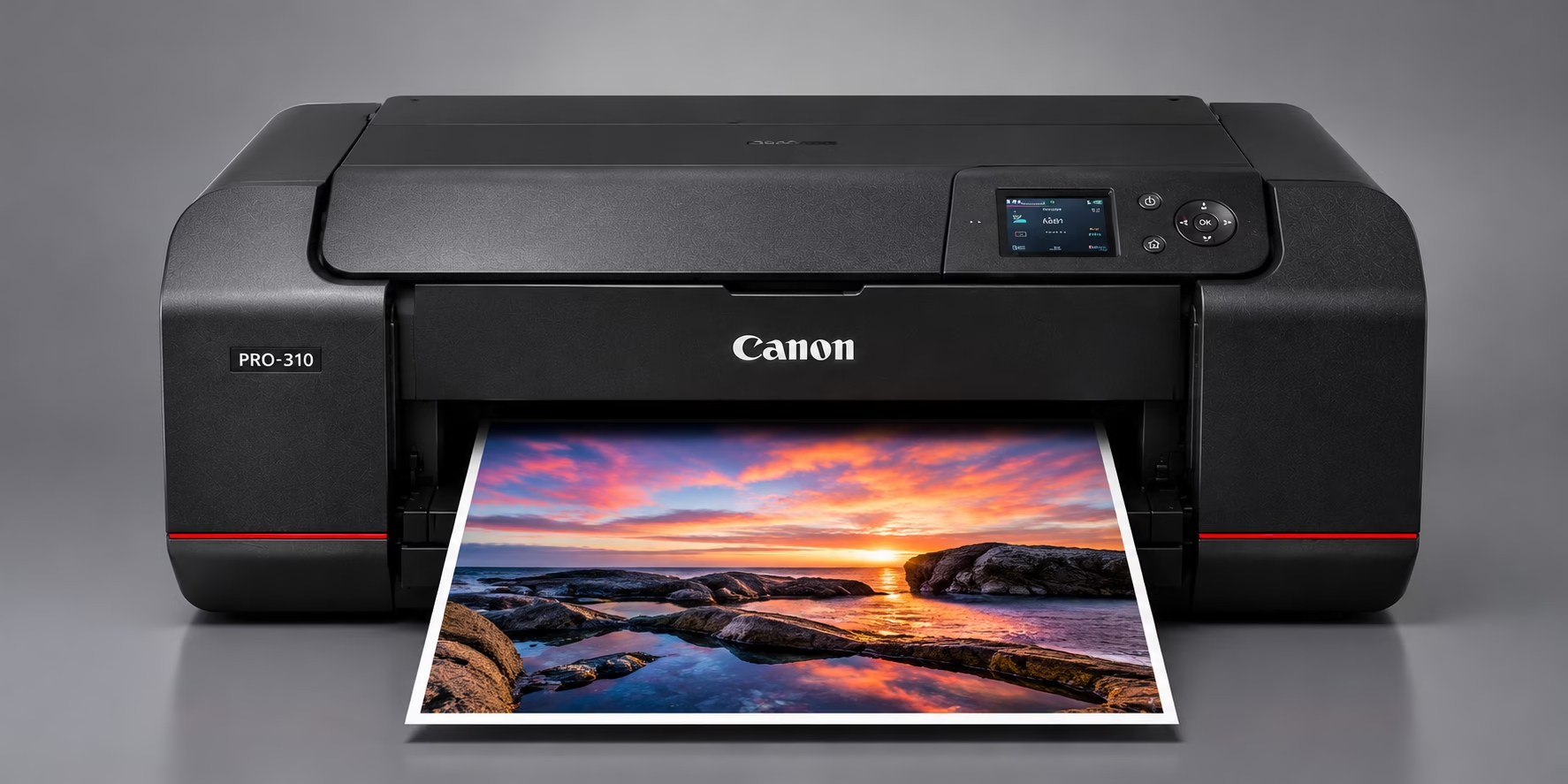
Canon imagePROGRAF PRO-310
Best A3+ alternative
Approx. £699.99
A smaller-format professional printer using 10 ink positions: nine pigment colours and a Chroma Optimizer. A good option if A3+ is large enough for your work and you do not need A2 output.
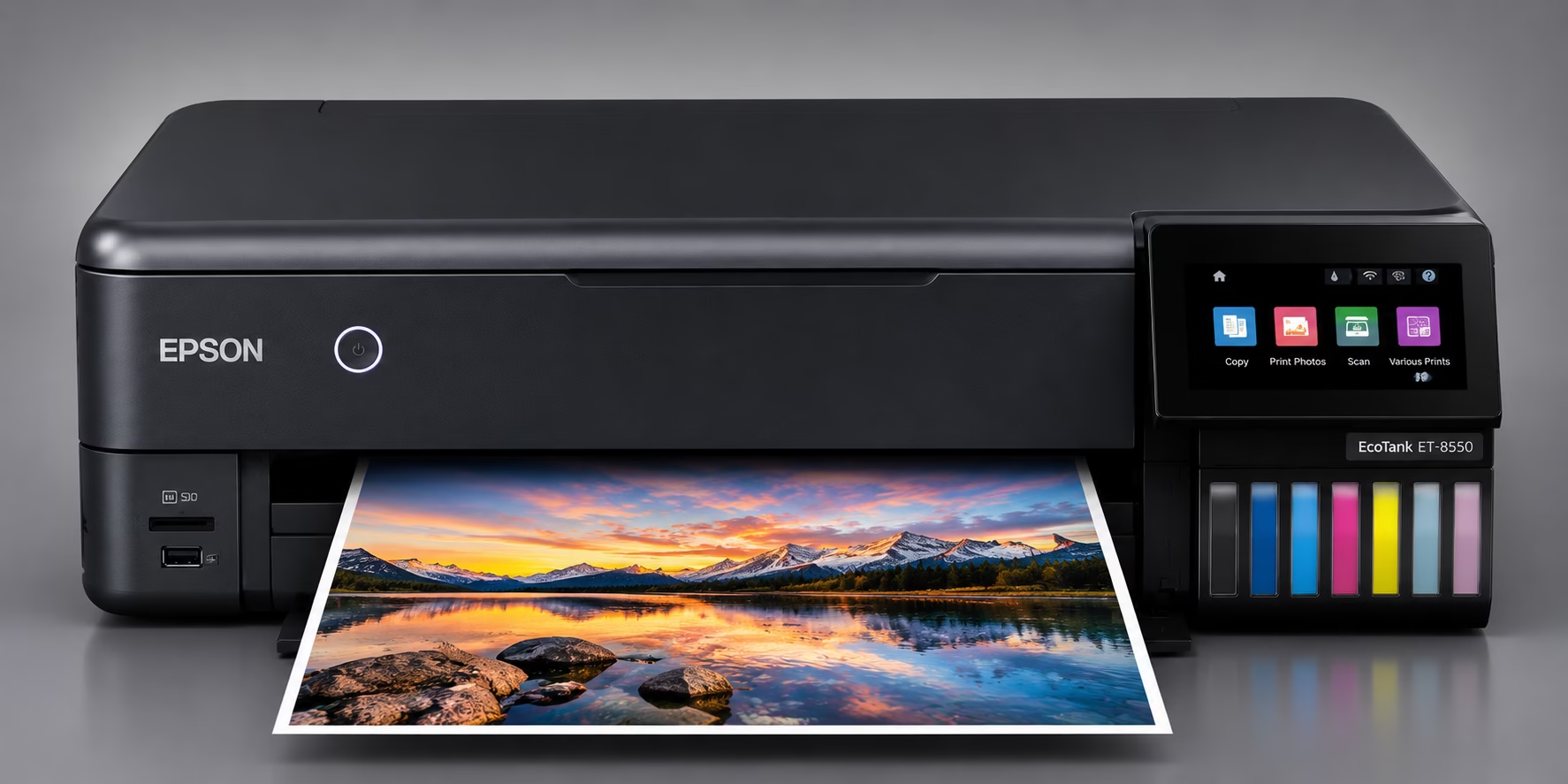
Epson EcoTank ET-8550
Best for economical everyday photo printing
Approx. £779.99
An A3+ refillable six-colour printer with much lower ink costs than cartridge-based professional models. It is worth considering for general creative and photographic work, but it is not a direct substitute for a dedicated pigment-ink fine-art printer.
Prices are manufacturer UK listings checked on 9 November 2026. They can change, and retailer prices may differ.
Ink costs: What will it cost to keep printing?
The purchase price is only part of the investment. Professional photo printers use multiple cartridges, and replacing a complete set can be a significant expense.
The following comparison uses the manufacturers’ UK prices for individual cartridges. It is based on the published cartridge capacities and is intended to give an indication of replacement costs, not a prediction of the cost of an individual print.
Specification |
Canon imagePROGRAF PRO-1100 |
Epson SureColor SC-P900 |
Canon imagePROGRAF PRO-310 |
Epson EcoTank ET-8550 |
|---|---|---|---|---|
| Printer format | A2 | A2+ | A3+ | A3+ |
| Printer purchase price | £1,099.99 | £1,140.30 | £699.99 | £779.99 |
| Ink positions | 12 | 10 | 10 | 6 |
| Ink technology | Pigment | Pigment | Pigment | Hybrid |
| Ink capacity per cartridge | 80ml | 50ml | 14.4ml | 70ml |
| Total ink capacity | 960ml | 500ml | 144ml | 420ml |
| Maintenance | MC-20 cartridge | Maintenance tank | Maintenance cartridge | Waste-ink pad service |
| Warranty | 2 years* | 1 year | 2 years* | 1 year or 50,000 pages |
| Replacement ink set | £653.88 | £398.60 | £154.99 | £101.94 |
| A3 paper cost | £1.16 per sheet | £1.16 per sheet | £1.16 per sheet | £1.16 per sheet |
| Total estimated A3 print cost | £2.22–£4.50 | £2.45 | £2.84–£3.60 | £1.31–£1.63 |
Printing costs: All figures are estimates based on the stated ink and paper prices. Actual costs will vary from print to print depending on image coverage, print settings and cleaning cycles. Paper prices and printer prices may also change.
*Paper cost calculated using Hahnemühle Photo Luster 260gsm A3, 25 sheets at £29.08 (£1.16 per sheet).
*Canon’s two-year guarantee applies to eligible hardware purchased directly from the Canon UK online store. Other retailers may offer different warranty terms.
How much should you charge for printing?
Buying a professional A2 printer can open up opportunities to offer photographic printing, fine art reproduction, design proofs and professional contract proofing. But what should you charge your customers?
Looking at published prices from UK printing businesses, there is a considerable difference between ordinary photographic printing and professionally prepared colour proofs.
Typical UK printing prices
The following figures provide an indication of the prices currently being charged by other UK printing businesses.
| Print Service | A3 | A2 |
|---|---|---|
| Standard photographic | £12–£18 | £20–£30 |
| Premium photographic/fine art | £15-£25 | £25–£35 |
| Contract colour proof | £30–£40 | £40–£50 |
These suggested retail prices are informed by published UK supplier prices, rather than simply being calculated as a multiple of the ink and paper costs. For comparison, published contract proofing prices from UK suppliers include A3 proofs ranging from approximately £29 to £44, with A2 proofs ranging from £35 to £55.
Don’t forget your operating costs
Your selling price needs to cover considerably more than the ink and paper used to produce the print. You should also allow for:
- Printer depreciation and eventual replacement.
- Maintenance, cleaning cycles and wasted ink.
- Specialist photographic or proofing paper.
- Time spent preparing, checking and producing the print.
- Colour management, calibration and profiling.
- Electricity and general business overheads.
- A reasonable profit margin.
Photographic printing is not the same as contract proofing
It is important to distinguish between producing a high-quality photographic print and supplying a professional contract proof.
A contract proof is intended to represent the expected appearance of the final printed job. This requires a properly managed colour workflow, calibrated equipment, appropriate proofing media and, where certification is offered, verification against the relevant printing standard.
Simply owning an A2 printer does not automatically make it a contract-proofing system.
For designers and smaller studios, offering both photographic printing and professionally managed proofing can provide an additional source of income, provided the equipment, workflow and quality control are appropriate.
Pricing guide based on published UK supplier prices checked November 2026. Suggested selling prices are indicative, not guaranteed market averages. Actual prices will depend on paper, print quality, image coverage, service level and operating costs.
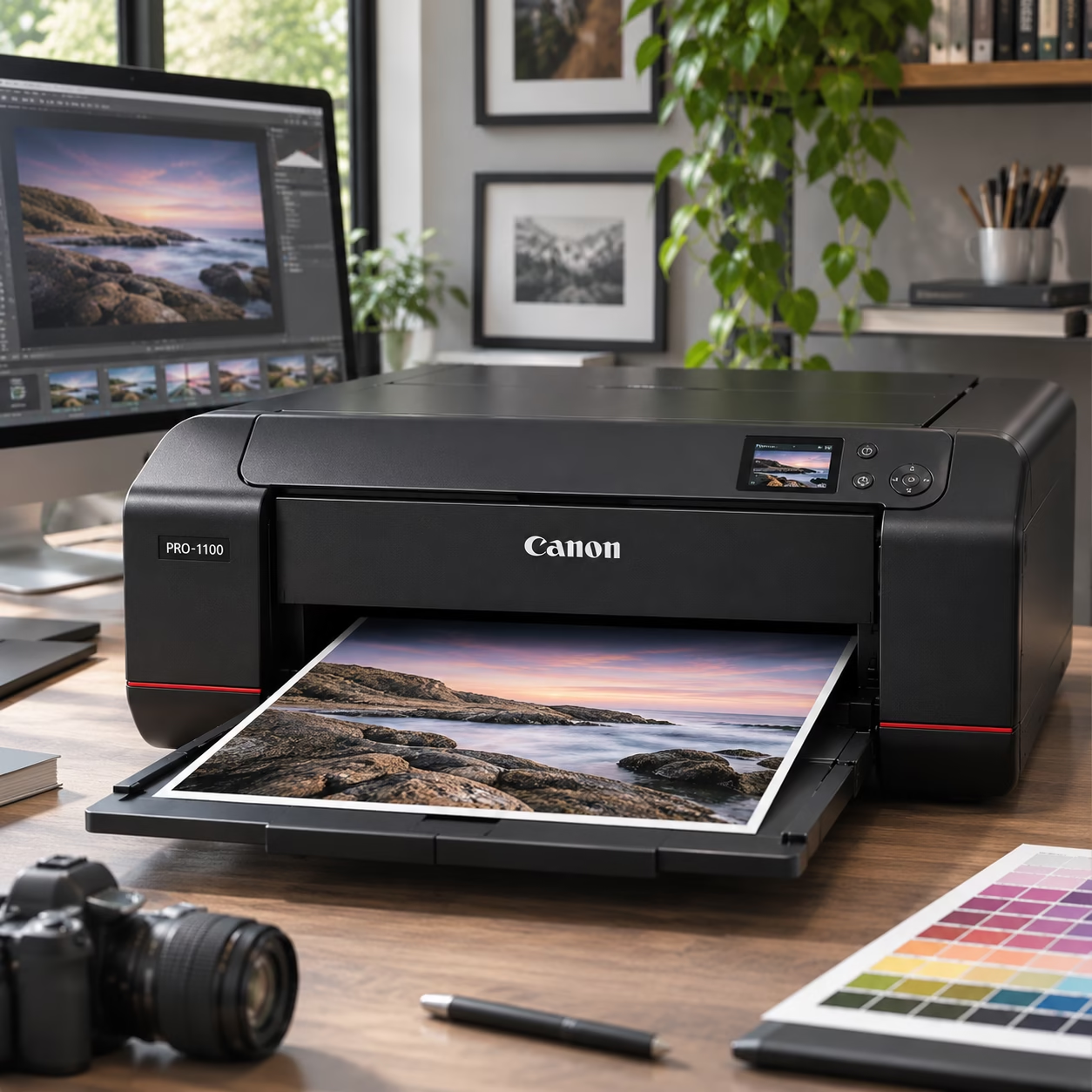
Canon imagePROGRAF PRO-1100
The PRO-1100 is Canon’s professional A2 desktop photo printer and a compelling choice for designers and artists who want to produce high-quality prints in-house. Its LUCIA PRO II system has 12 ink positions: 11 pigment inks and a Chroma Optimizer. The pigment inks provide a broad colour range, detailed tonal gradation and strong black reproduction. The Chroma Optimizer helps produce a more uniform gloss finish and reduces the appearance of bronzing on compatible glossy and semi-gloss media.
The printer supports media up to A2 and can produce panoramic prints up to approximately 3.27 metres long. This makes it useful for artwork and photographic work that extends beyond conventional sheet sizes. Canon has also included features intended to improve reliability and consistency. These include a colour-density sensor, an air-feeding system to help keep paper correctly positioned, and a user-replaceable print head. A maintenance cartridge collects waste ink generated during cleaning and other maintenance operations.
Who should consider it?
The PRO-1100 is a good choice for a small design studio, photographer or artist who regularly produces large, high-quality prints and wants control over the complete output process. It is not a maintenance-free printer. Like other inkjet printers, it needs sensible use and care, particularly if it is left unused for long periods.
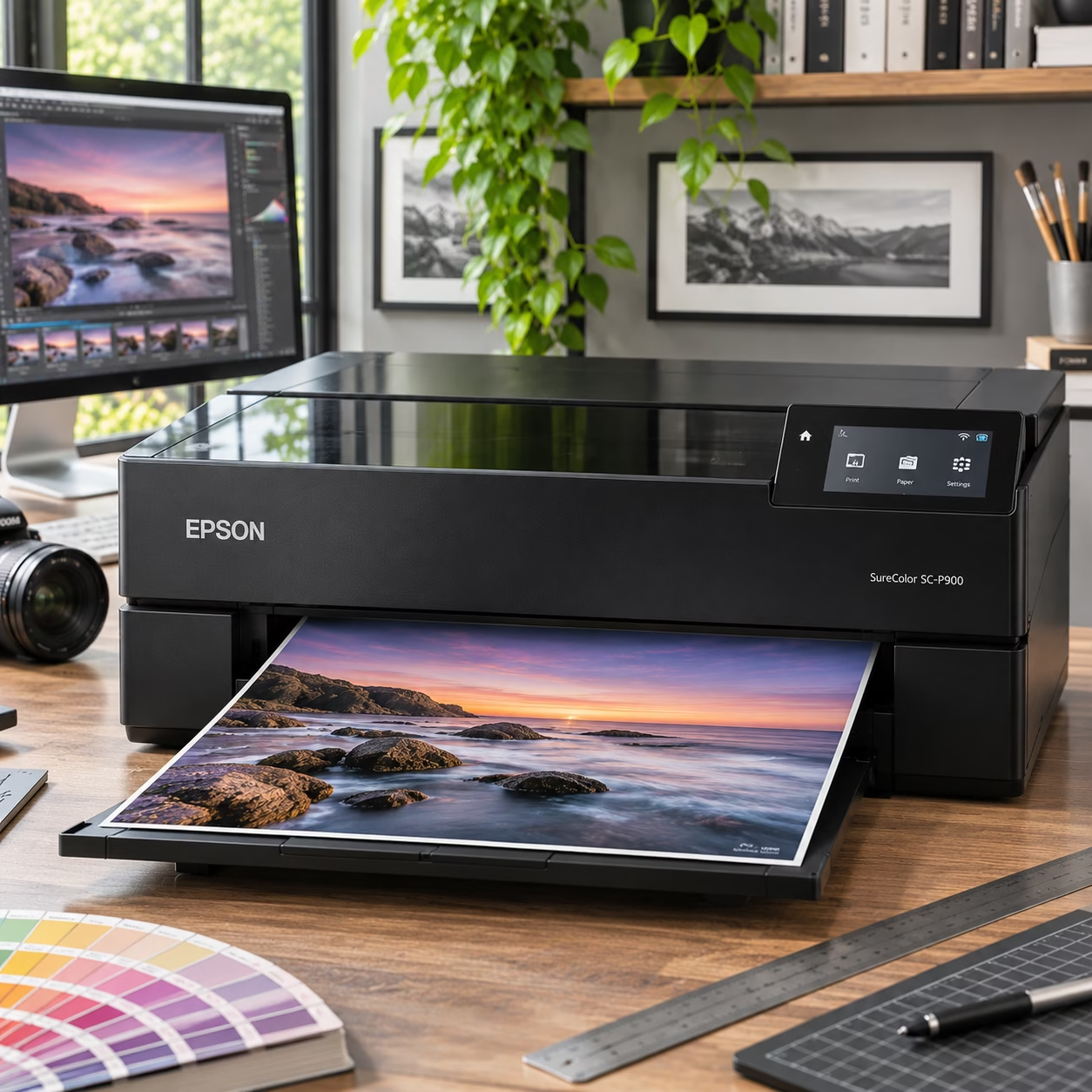
Epson SureColor SC-P900
The Epson SC-P900 is a professional A2 photo printer using a ten-colour UltraChrome PRO10 pigment ink system. Its ten inks include Photo Black, Matte Black, Cyan, Light Cyan, Yellow, Vivid Magenta, Vivid Light Magenta, Violet, Grey and Light Grey. The additional violet ink helps extend the printable colour range, while the dedicated black and grey inks support detailed monochrome output.
The P900 is particularly interesting for fine-art printing. It can handle a variety of specialist papers, including thicker media up to 1.5mm, and supports roll paper when used with the appropriate roll-paper unit. Its compact footprint is another attraction. Despite its A2 capability, it is designed to fit into a working studio rather than requiring the space of a larger production printer.
Who should consider it?
The P900 is well suited to photographers and artists who value fine-art paper choice, detailed monochrome printing and a broad pigment colour system. It is a close competitor to the Canon PRO-1100. The decision is likely to come down to personal preference, the media you intend to use, the software workflow and the cost of replacement inks.
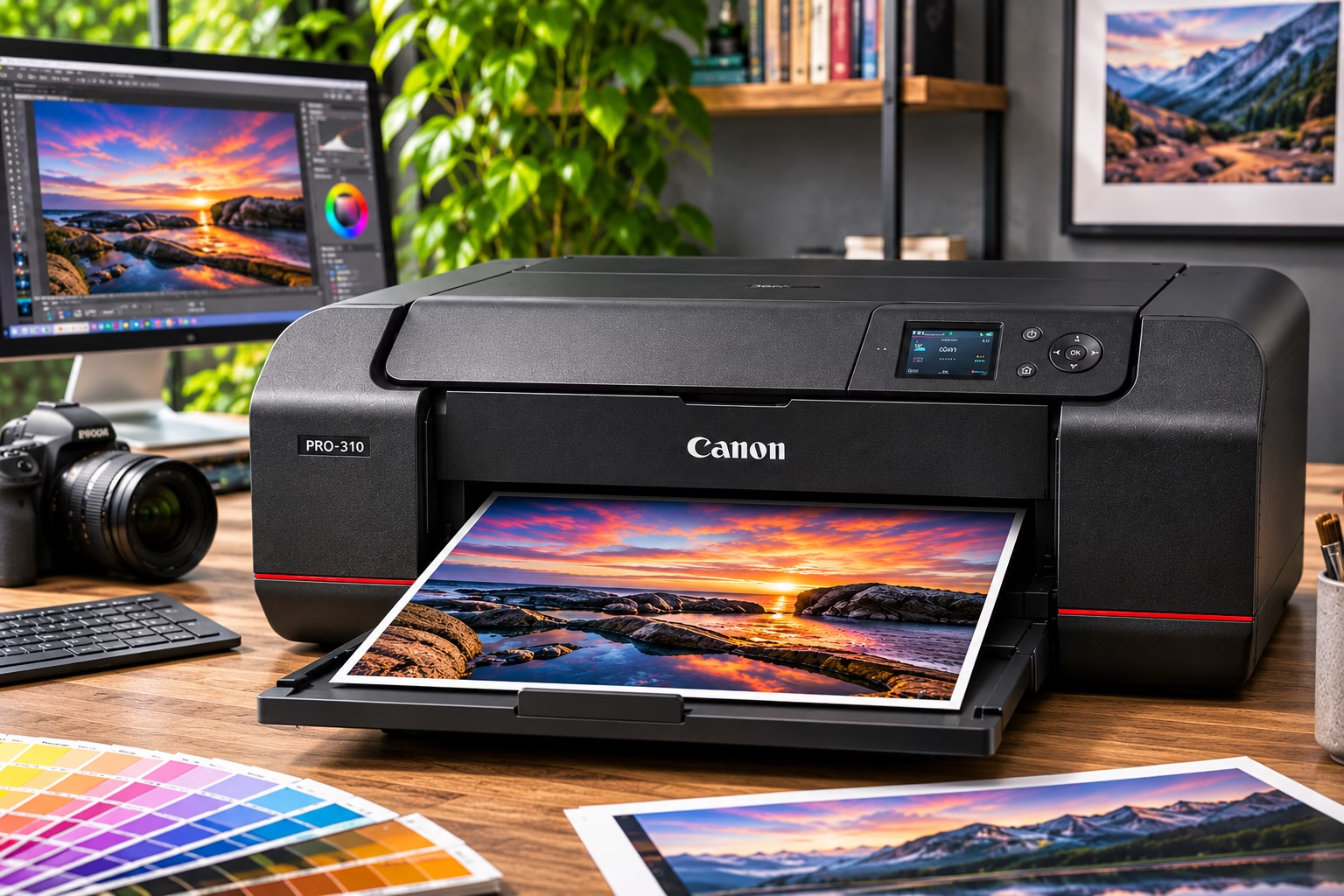
Canon imagePROGRAF PRO-310
Not everyone needs A2 output. The Canon PRO-310 provides a professional alternative for those who are happy with A3+ prints. It uses ten ink positions: nine LUCIA PRO II pigment inks and a Chroma Optimizer. This is a dedicated photographic system rather than a general-purpose office printer. It offers professional print software support and is designed to produce high-quality colour and monochrome photographs. The smaller format also means a lower initial purchase price and a more compact installation.
Who should consider it?
The PRO-310 is worth considering if A3+ is sufficient for your work. It offers many of the advantages of Canon’s professional pigment printing in a smaller and less expensive package.
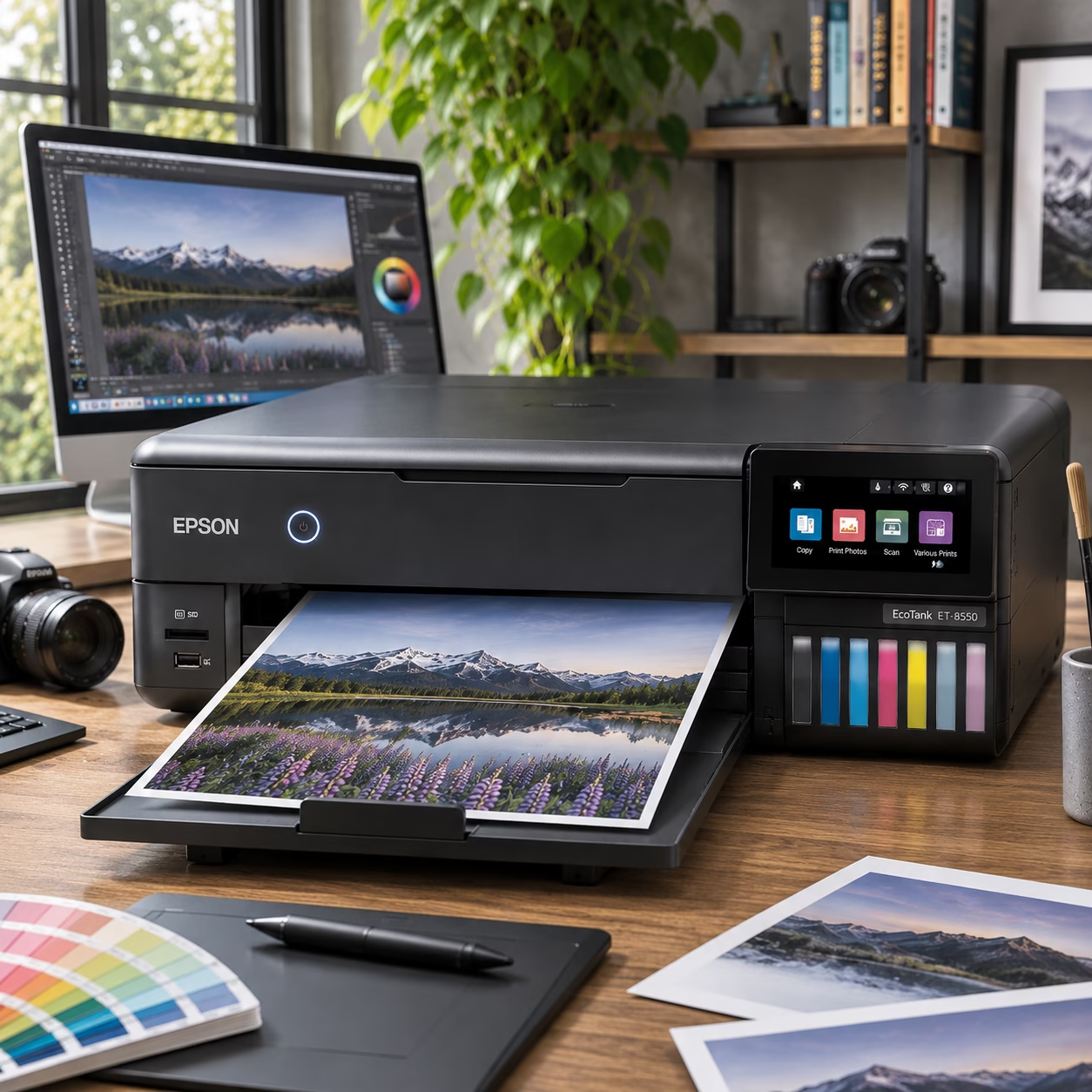
Epson EcoTank ET-8550
The ET-8550 is a different proposition. It is an A3+ photo and all-in-one printer with a refillable six-colour ink system. Its Claria ET Premium inks comprise pigment black and dye-based Photo Black, Cyan, Magenta, Yellow and Grey. This arrangement is designed to provide good photographic output while keeping replacement ink costs low.
The refillable tanks make it attractive to people who print frequently and want to avoid the expense of replacing multiple small cartridges. It can also handle a range of creative media, including thicker materials through its rear feed. However, it should not be confused with the professional pigment printers above. Its dye-based colour inks, intended use and overall positioning make it a more economical general photo printer rather than a direct competitor to the Canon PRO-1100 or Epson P900 for specialist fine-art output.
Who should consider it?
The ET-8550 is a sensible option for a designer or artist who wants affordable A3+ photographic and creative printing, and who does not require the specialist pigment-ink capabilities of a dedicated fine-art printer.
Getting accurate colour from your printer
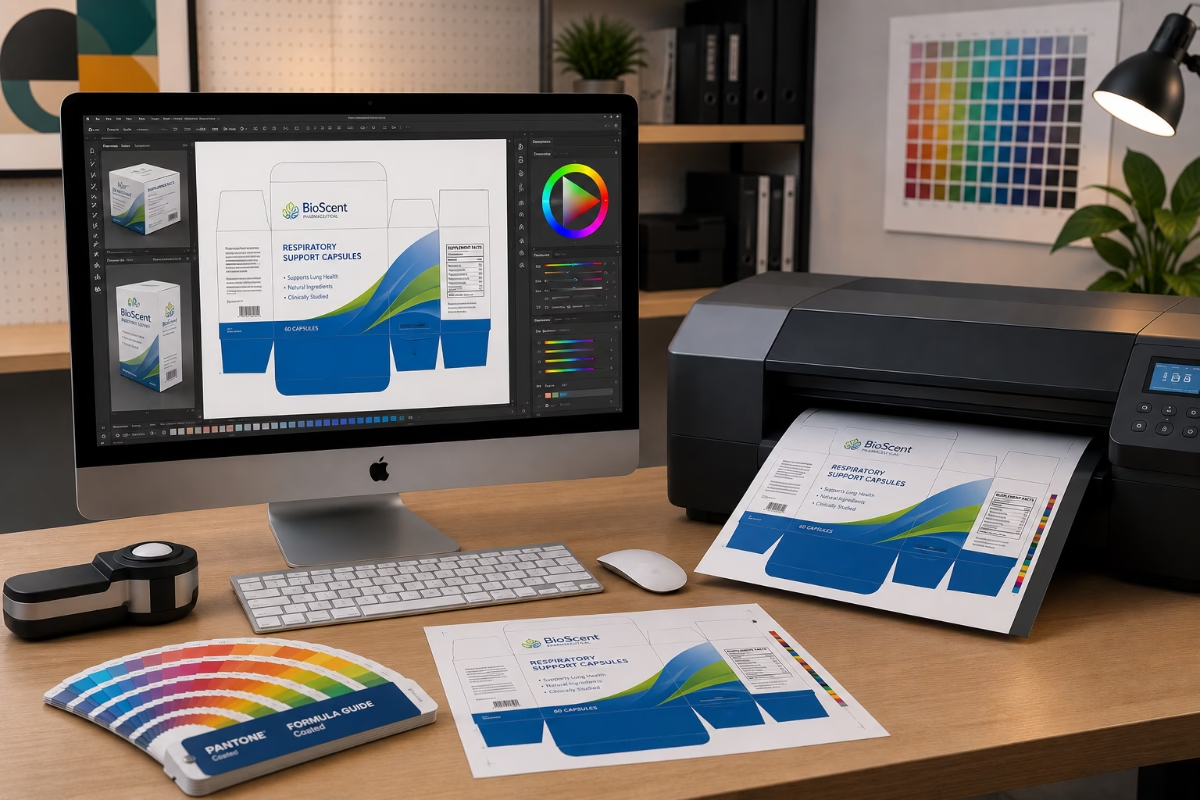
Buying a professional printer is only one part of the process. If the monitor is displaying inaccurate colour, or the wrong printer profile is being used, the final print may still look very different from the image on screen. A reliable colour-managed workflow should include the following.
Calibrate your monitor
A monitor should be calibrated using a suitable hardware calibration device rather than relying solely on visual adjustments. For general print preparation, D65 white point, gamma 2.2 and a brightness setting around 100–120 cd/m² can be a useful starting point. The correct brightness depends on the working environment and the brightness of the paper being viewed. For critical print assessment, viewing conditions also matter. Professional print evaluation commonly uses controlled D50 lighting, so the monitor and the physical print are not being judged under completely different illumination.
Use the correct ICC profile
An ICC profile describes how a particular printer, ink and paper combination reproduces colour. Use the profile supplied by the paper manufacturer or create a custom profile for your own printer and media. A profile for one paper type should not automatically be used for another.
Soft proof before printing
Applications such as Adobe Photoshop and Lightroom can simulate how an image is likely to reproduce using a selected printer and paper profile. Soft proofing can help identify colours that fall outside the printer’s reproducible gamut and allow adjustments before committing to paper and ink.
It is important to use the correct rendering intent for the image. Relative Colorimetric can preserve in-gamut colours while mapping out-of-gamut colours to the nearest reproducible value. Perceptual rendering can compress the overall colour range to retain relationships between colours. The better choice depends on the image and the profile.
Avoid double colour management
This is a common source of disappointing results. If the application is managing colour using the selected ICC profile, the printer driver must be set so that it does not apply a second colour correction. Equally, if the printer driver is managing colour, the application should not apply another profile conversion. Choose one colour-management route and configure the application and printer driver accordingly.
Choose the right paper
Paper has a significant effect on the final appearance. Gloss, lustre, satin and matte papers all reproduce colour and contrast differently. A glossy paper may provide deep blacks and strong colour, while a textured matte fine-art paper can produce a softer appearance with a different tonal range. Always use the ICC profile made for the paper you are printing on.
What if you do not print regularly?
There is a balance to be considered when deciding whether to purchase your own printer or outsource your printing and proofing requirements. If you only produce occasional proofs, sending your work to a specialist printing or reprographics company will often be the more economical option. You avoid the initial investment, ongoing ink costs, maintenance and the responsibility of keeping a printer in good working order.
However, if you need to produce proofs in-house, at short notice or on a regular basis, investing in a professional printer may be worthwhile. A more comprehensive professional proofing system will cost considerably more than the desktop printers featured in the comparison above, but it can offer greater control over colour management, consistency and production.
Inkjet printers are designed to be used. Although modern printers incorporate automatic maintenance routines, prolonged periods without printing can increase the risk of blocked or dried print head nozzles. This is particularly relevant to photographers, designers and studios that may only produce a handful of prints each month.
There is no universal weekly printing requirement. The maintenance routines and recommendations vary between manufacturers and models, so always follow the instructions supplied with your particular printer.
The cost of cleaning print heads
One of the less obvious running costs of an inkjet printer is the ink consumed during cleaning and maintenance. When a printer performs a cleaning cycle, ink is passed through the print head nozzles to help clear obstructions and restore ink flow. This ink is not used to produce a saleable print. It is effectively wasted, and the resulting waste ink is collected in a maintenance cartridge or tank, depending on the printer.
With expensive photographic inks, repeated cleaning can become costly. More intensive cleaning procedures can consume considerably more ink than a standard cleaning cycle. Do not run repeated cleaning cycles without first checking the nozzle pattern. If a nozzle check identifies missing lines or blocked nozzles, follow the manufacturer’s recommended cleaning procedure. Repeated cleaning when it is not needed will simply consume ink and fill the maintenance system more quickly.
If you know that your printer will be unused for an extended period, consult the manufacturer’s instructions before leaving it unattended. In particular, use the printer’s normal power-down procedure rather than simply disconnecting it from the electricity supply. Some models have automatic maintenance functions that rely on the printer remaining correctly connected to power.
Ultimately, if you are only printing occasionally, the apparent saving from purchasing your own printer may be outweighed by ink wastage, maintenance and the risk of print quality problems. It is worth considering the total cost of ownership, rather than just the initial purchase price.
Do you need RIP software?
RIP stands for Raster Image Processor. In professional printing, a RIP can provide additional control over how artwork is processed and sent to a printer. Depending on the software and printer, this can include advanced colour management, ink control, image nesting, tiling and production workflow management.
However, a separate RIP is not essential for producing high-quality photographic or fine-art prints with the desktop printers featured in this article. Their standard printer drivers, supported ICC profiles and dedicated printing applications provide the facilities most independent designers and artists will need.
Printer-specific software
Canon imagePROGRAF PRO-310
Canon’s Professional Print & Layout software provides additional control over image positioning, print settings and colour management. It is designed to work with compatible Canon professional photo printers and is a useful addition to a Photoshop or Lightroom workflow.
Epson EcoTank ET-8550
Epson Print Layout is available for the ET-8550. It provides a more specialised printing interface, allowing users to arrange images, adjust layouts and manage print settings.
When would you need a full RIP?
A third-party RIP becomes more relevant when printing regularly in a production environment, particularly where you need to automate jobs, arrange multiple images efficiently, produce tiled output or manage specialist printing processes. Before purchasing one, always check that the exact printer model and your computer’s operating system are supported. For most graphic designers, photographers and artists using these desktop printers, the supplied software and a properly managed ICC colour workflow should be sufficient.
Which printer should you buy?
For professional A2 output, the Canon imagePROGRAF PRO-1100 and Epson SureColor SC-P900 are the two strongest choices in this comparison. Both offer excellent print quality, sophisticated pigment ink systems and the flexibility required by designers, photographers and artists. Both use multi-channel pigment ink systems and are designed for high-quality photographic and fine-art work. The Canon offers a 12-position system, larger 80ml cartridges and a range of features aimed at consistent output. The Epson offers ten pigment inks, including violet, and supports thicker media up to 1.5mm. If you do not need A2, the Canon PRO-310 is a capable A3+ alternative. If keeping ink costs down is more important than having a specialist pigment system, the Epson ET-8550 deserves consideration.
The most important decision is not simply which printer has the highest specification. It is choosing a printer that suits the work you produce, the papers you use and how frequently you intend to print.
Explore the world of PrePress